
Counting to 20 Detailed Assessment (KN)
Counting to 20 Detailed Assessment
Purpose: the purpose of this assessment is to allow teachers to collect detailed data on the Pre K standard: (PK.MA31 Develop an awareness of numbers and counting as a means for understanding quality). Teacher can collect detailed information about what number a student know when counting to 20.
Steps:
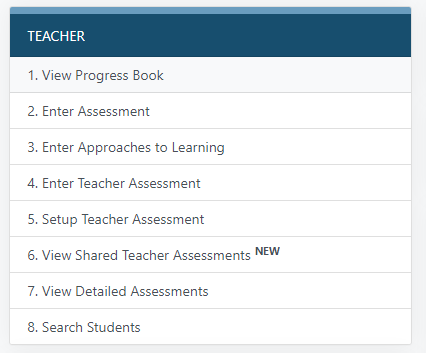
1. Select view detailed assessment from the teacher menu on the home page.
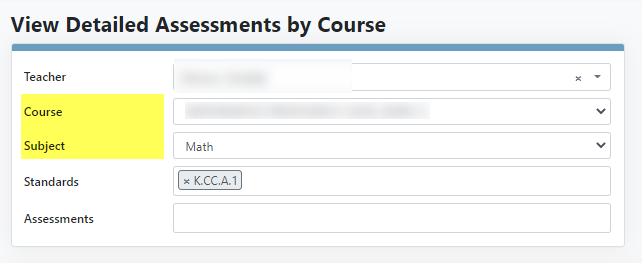
2. Select the course and subject (math) you would like to use score an assessment.
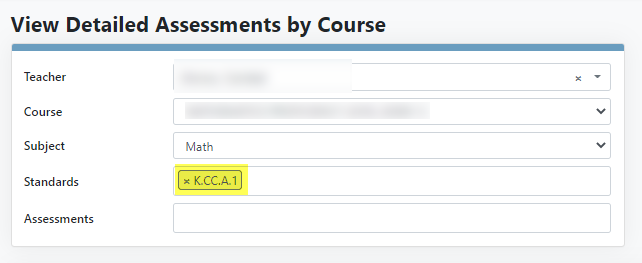
3. Select the standard. For this particular assessment you will have to choose the standard K.CC.A.1, since we currently don't collect scores on Pre K standards (this particular detailed assessment will not affect a students score) .
This will give you a list of all possible detailed assessments for this standard (as well as the pre K standard, counting to 20) and the students current score on this standard.
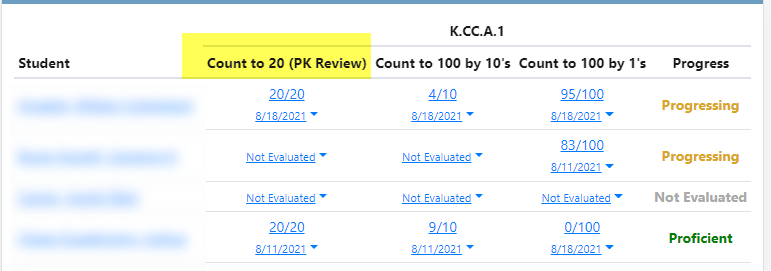
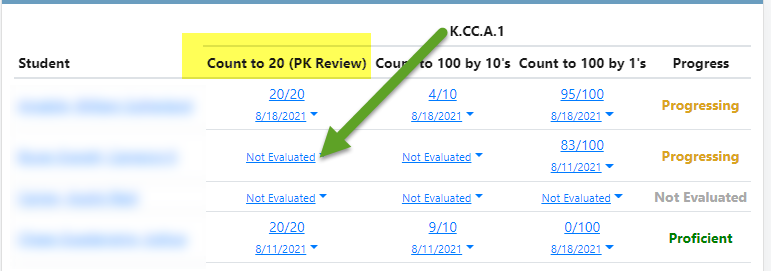
4. Select the link in the Count to 20 column next to the student you would like to assess.
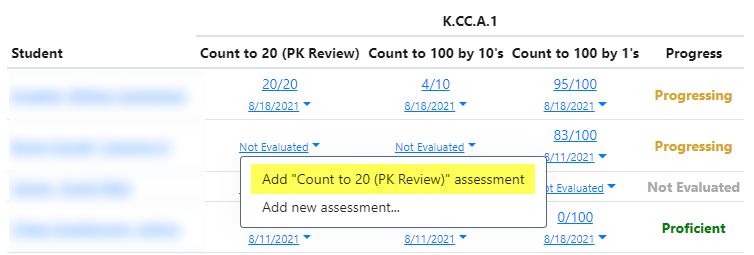
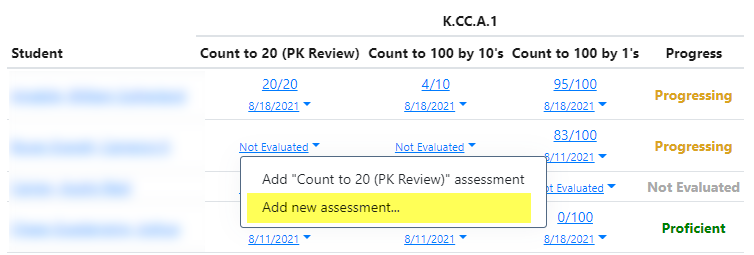
5a. If the student has not yet been assessed you will see the word Not Evaluated in this column and you will have an option of 2 links. Add "Count to 20 (PK Review) assessment or Add new assessment.
- If you select add Add "Count to 20 (PK Review) assessment you will be taken directly to the Count to 20 (PK Review) assessment where you can enter data (detail below)
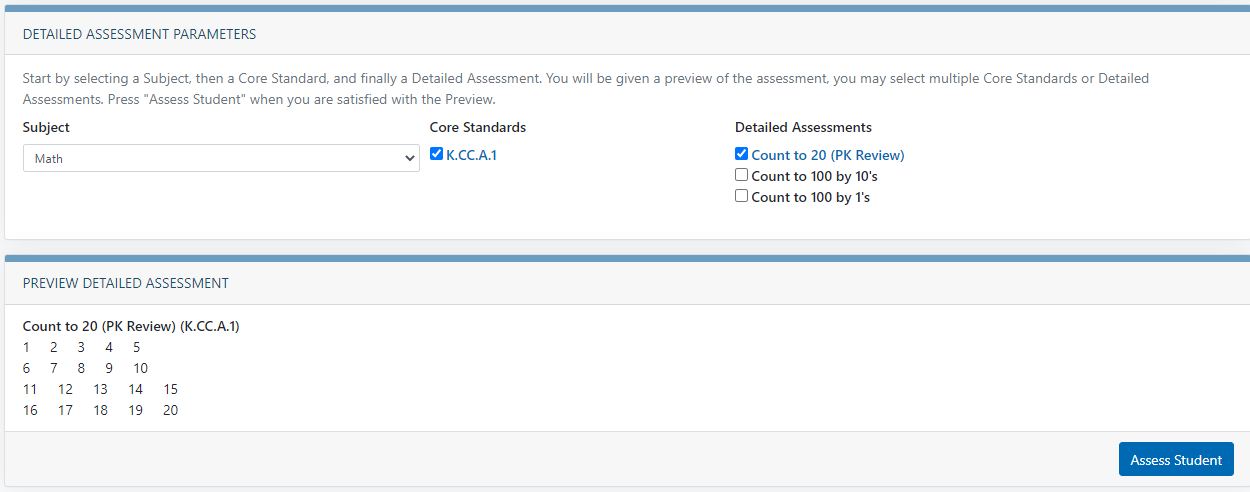
- If you select Add new assessment you will be taken to a screen where you can add additional assessment to score while you are scoring the Count to 20 assessment.
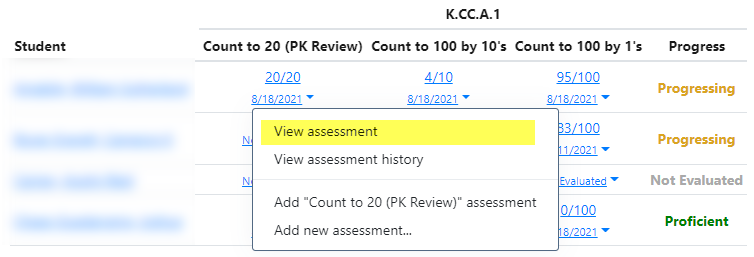
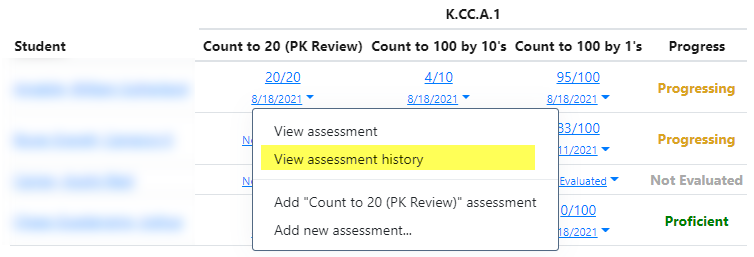
5b. If a student has been assessed the most recent score will be present and the date of the most recent assessment. You will also have two additional link options.
- View assessment will show you the most recent assessment .
- View assessment history will give you a history of past assessments (dates and scores) and links to view or edit these assessments. You will also be able to see the students current progress on the standard.
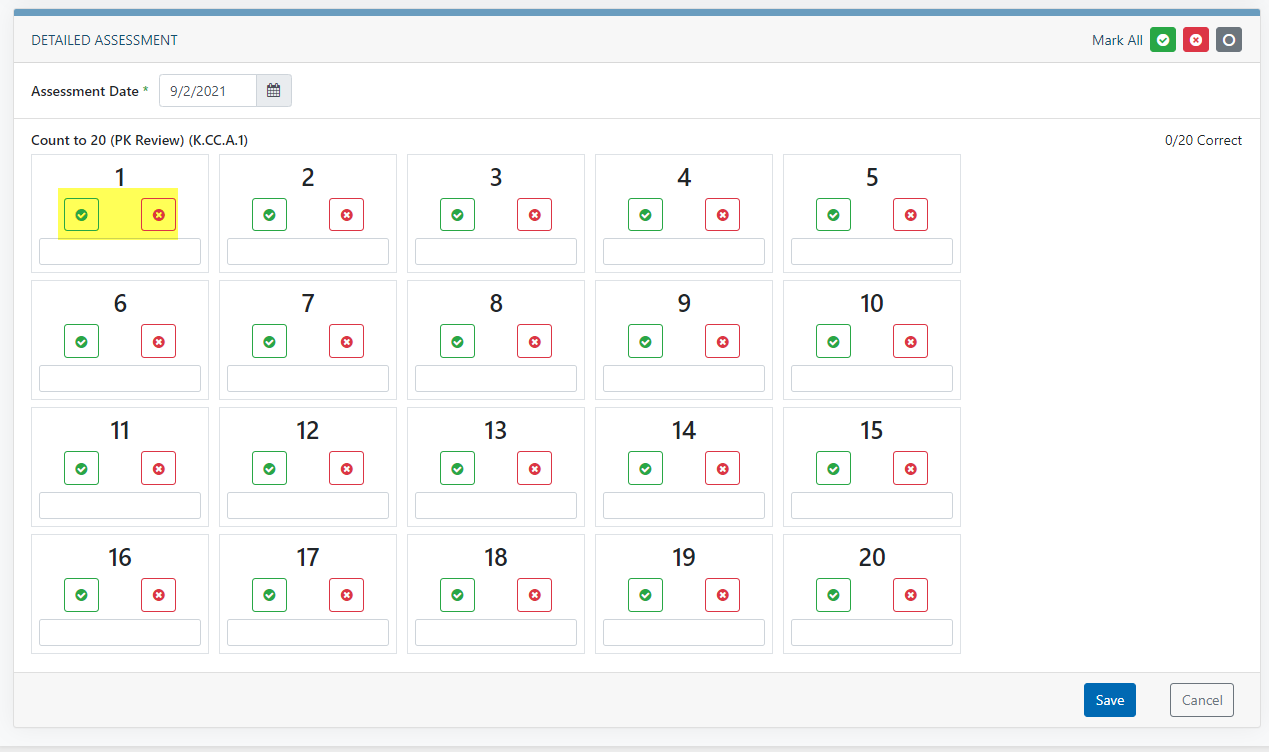
 6. Once you have selected the link to add the assessment select the green boxes to indicate which numbers the student counted correctly and the red boxes to indicate which number the student counted incorrectly. You can also add comments in the box below each number.
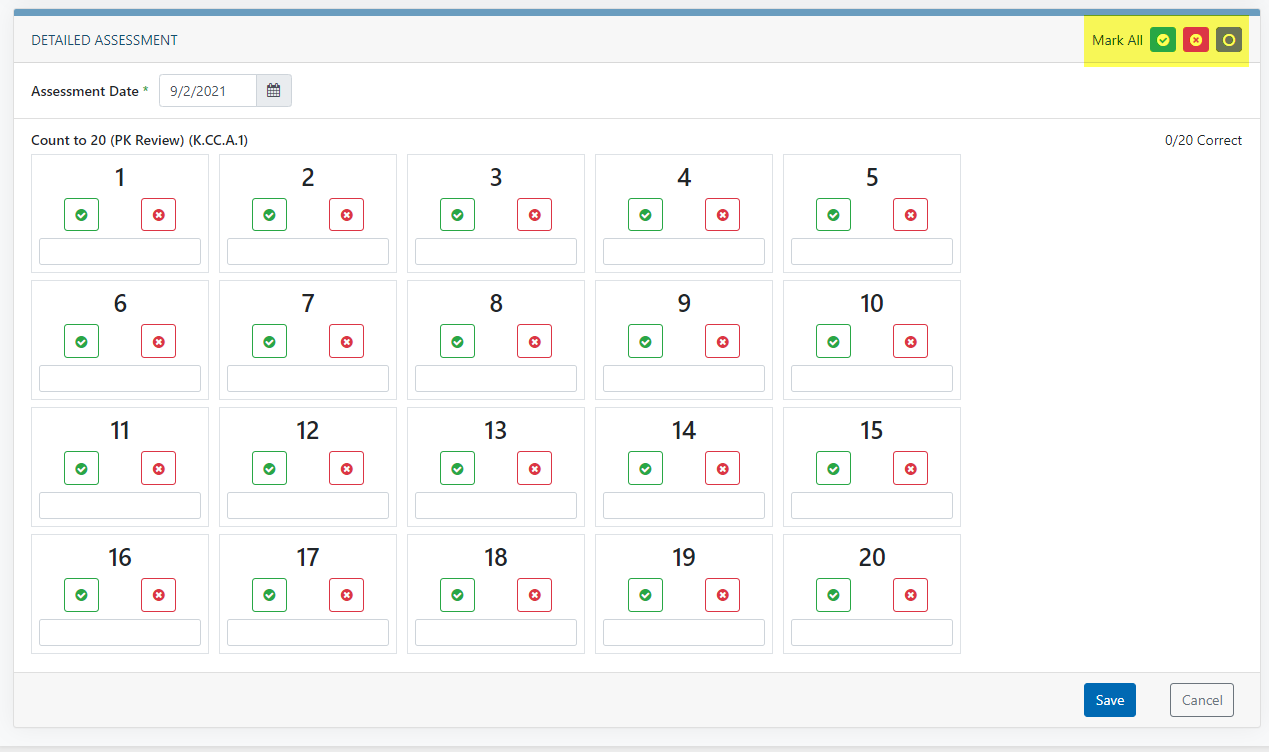
You can use the red, green, and grey boxes in the right hand corner to mark all the boxes on the assessment either correct, incorrect, or reset them to blank respectively.
7. once all scores have been entered select the save button at the bottom of the page. Selecting the Cancel button will cancel all changes made.
