
Students not Assessed Report
Students not Assessed Report
Purpose: This feature was created to indicate which students have not been assessed and can be run by subject.
Steps
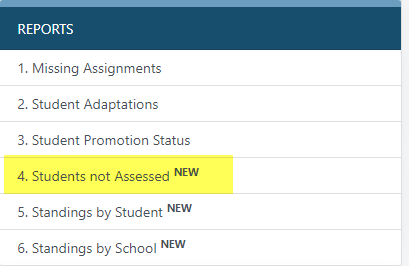
1. Select the "Students not Assessed" link under the "Reports" header on the main page.
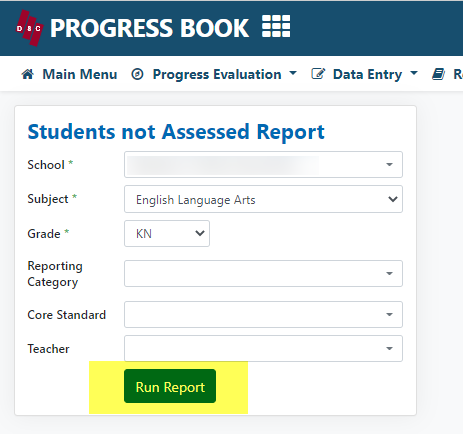
2. Select the parameters you would like to run the report for. School, Grade, and Subject are mandatory fields. Reporting Category, Core Standard, and Teacher are available as additional dropdowns. Then select the "Run Report" button.
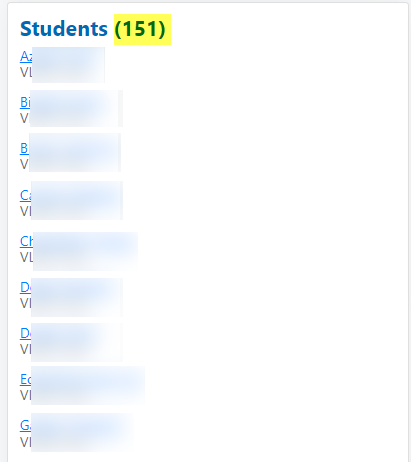
3. If there are any students who have not been assessed in the parameters you have chosen you will see three lists when you run the report.
The first list will be all students who fall into the parameters chosen. The number next to the title of the list indicated how many students are in the list.
- The second list will be a summary count of students in specific classrooms.
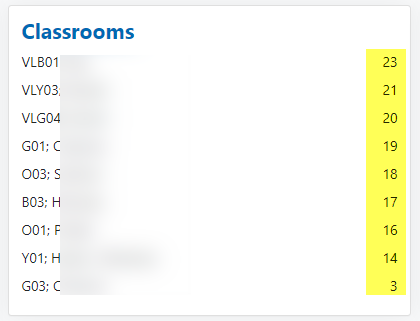
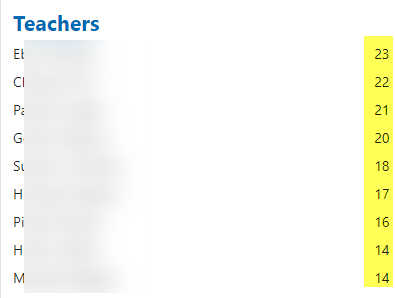
- The third list will be a count of students under a specific teacher. If classroom teachers do not have more than one course in a subject, the classroom list and the teacher list may be identical.
As always if you have any questions please feel free to reach out to the help desk at helpdesk@dataservice.org