Creating a District Wide assessment in the system (District Admin Access)
Creating a District Wide Assessment
Purpose: This feature was created to allow district Admin the ability to create district wide assessments.
Steps
1. Select the "Manage District Assessments: Link from the main menu.
 2. Select the subject and Grade you would like to add an assessment to.
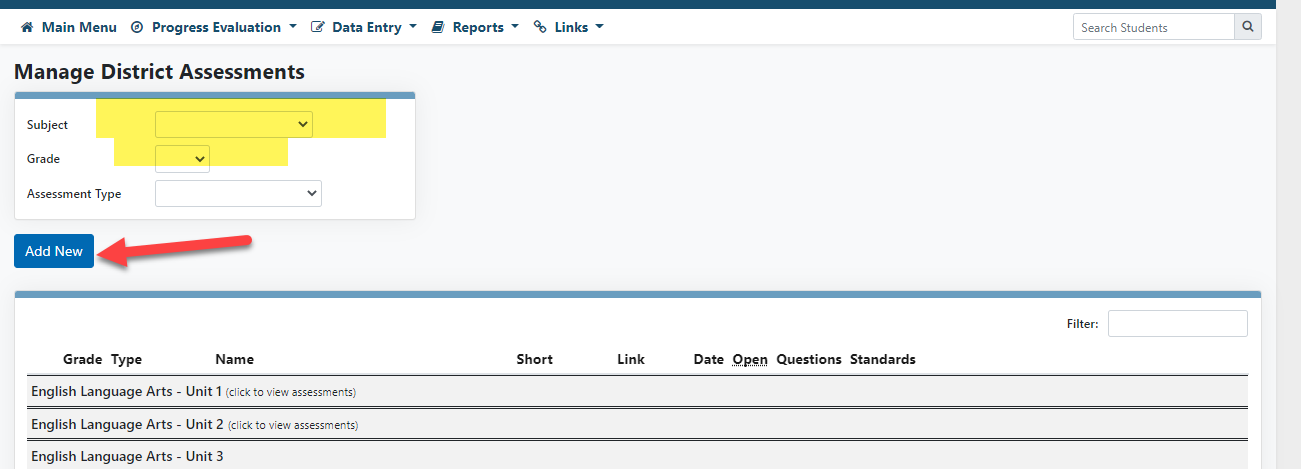
3. Set up the basic assessment information. The required fields are marked with an asterisk.
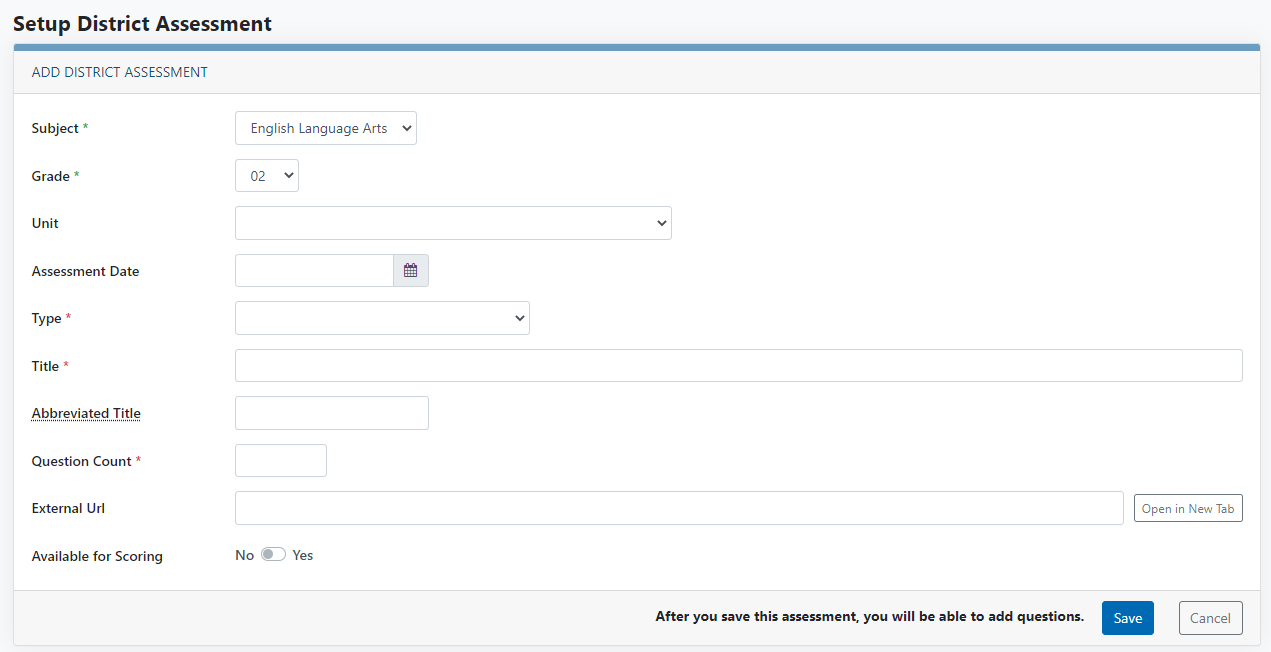
3a. Subject, Grade, Type of Assessment, Title of Assessment, and question count are all required for the assessment to be set up.
3b. The Abbreviated Title field can be used for assessments with long names. The abbreviated title will be used in the system anywhere there is limited space (Column headers).

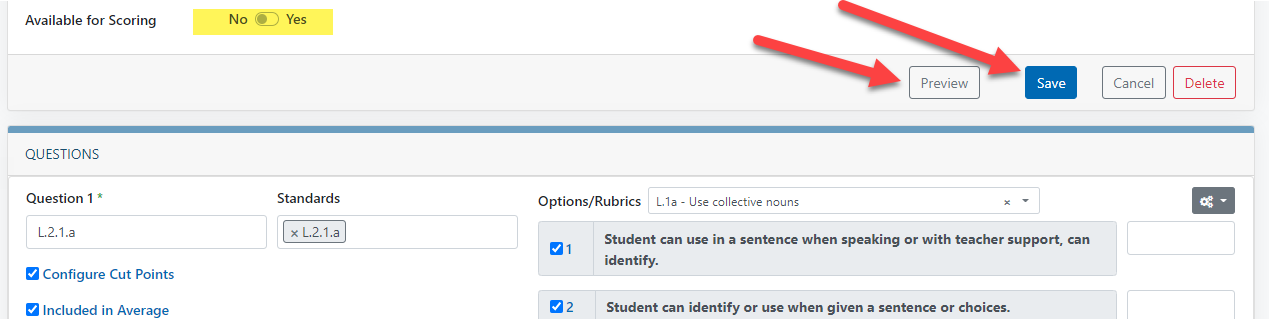
3c. The available for scoring toggle will allow you to hide the assessment from users until you have completed the assessment set up.
 3d. The External URL field will allow you to add a link to assessments. If an assessment is in google docs or on an external website. The site URL can be copied and pasted into the field. The Open in New Tab button will allow you to view how the page will be presented to users when they select the link.

3e. Once the information has been entered you can select the save button to start adding questions.
4. For each question you will need to add a question title, rubric, and if you would like to add standards that aren't in the rubric you can add them in the Standard field.
4a. you can quick add the question title by
clicking on the question number (to add the question number)  or add the rubric name to the question title by selecting the Options/Rubric
or add the Standard code to the question title by selecting Standards 
5. You can add standards to the question by selecting the standards box and choosing the standard from the drop down.
 6. the cog icon to the right of the question will allow you to delete a question if no student data has been entered for the assessment.
 7. You can select or deselect rubric indicators by checking or unchecking the boxes next to each indicator.
 8. Questions are automatically set to be included in student averages but if a question should not be included in student averages you can deselect the include in average box below the question title.
 9. If you are a district that has teacher enter student scores for each question you can select the configure cut score box to enter the appropriate cut scores. Once the cut score box is selected you can enter cut scores into the boxes provided.
 10. If you need to reorder question, scroll to the bottom of the assessment set up page and select the reorder questions link.
 10a. This will provide a pop up that will allow you to move the questions by dragging the arrow and placing the questions into the appropriate order. Be sure to select save when done.
 11. You can add questions by selecting the add question button at the bottom of the page and selecting how many questions you would like to add.
 12. Once you have completed your question set up, you can save your assessment or preview your assessment by selecting the appropriate button at the top or bottom of the page. The preview button will allow you to see the assessment as a teacher would. Don't forget to make your assessment available for scoring if you would like teachers to be able to enter scores.