
Creating a Teacher Created Assessment.
Creating a Teacher Created Assessment
Purpose: The purpose of this feature is to allow teachers to create an assessment for their class. This assessment will not be a district wide assessment.
Steps:
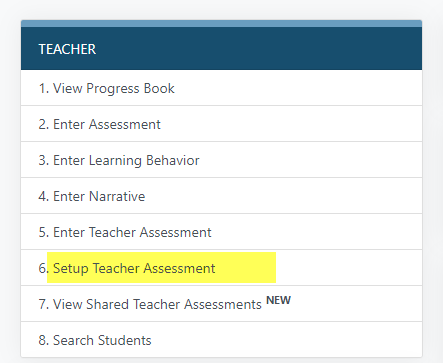
1. Select Setup Teacher Assessment from the teacher menu:
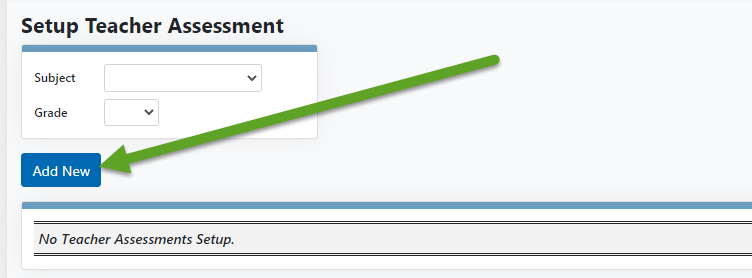
2. Select the Add New button. All previously teacher created assessments can be found on this page as well as on the Enter Assessment page.
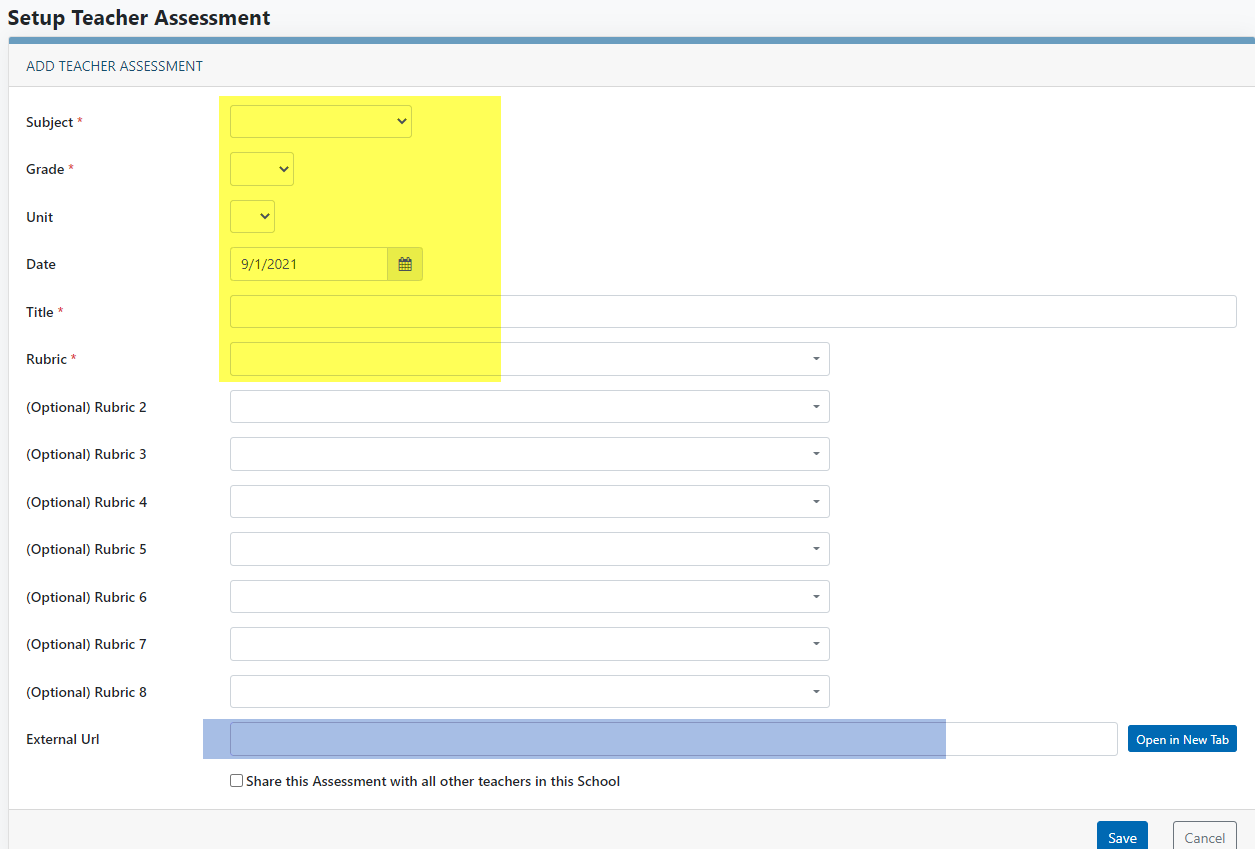
3. From the Add Teacher Assessment page fill out appropriate fields.
The following fields are required:
Subject, Grade, Title, and Rubric.
You can select up to 8 standards based rubrics for the assessment. You can also add a URL for the assessment if available.
4. Once the appropriate information has been added to the assessment you can select Share this Assessment with all other teachers in my school (to share assessment) and then select the save. If you do not want to share the assessment just select the save button.
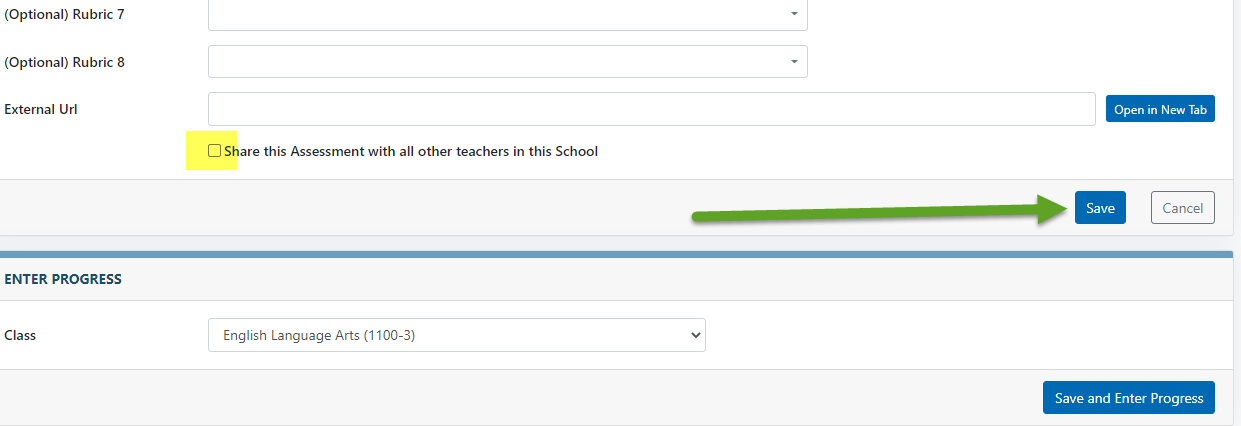
5. If you would like to start entering data for your class immediately you can also select a course from the class drop down and select the Save and Enter Progress button.
