
Copying a Teacher Created Assessment.
Copying a Teacher Created Assessment
Purpose: The purpose of this feature is to allow a teacher to select an assessment created by another teacher in the building and add that assessment to their own teacher created assessment list.
Steps:
1. Select View Shared Assessments from the teacher Menu on the home page of Progress Book.
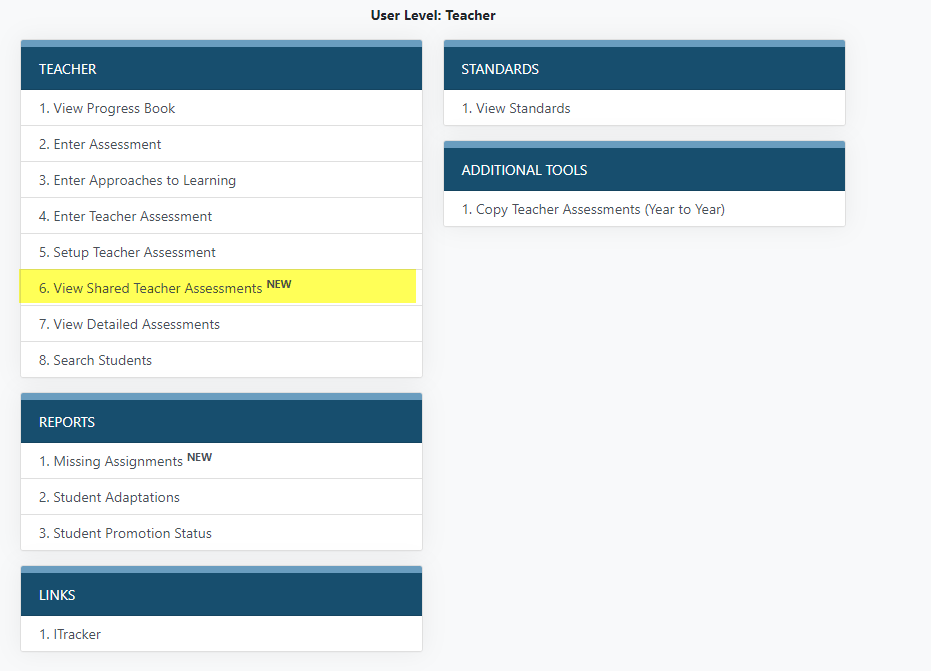
2. Choose the assessment you would like to copy from the list (remember, you cannot use off grade level assessments to assess you class) and select the view button.

3. If changes are required you can make them from the view screen. You can change the date, title, unit, link, and add or remove rubrics. Once you have completed these actions you can save the assessment and score it as if it were your own teacher created assessment. If you do not want to reshare the assessment, be sure to deselect the Share this Assessment with all other Teachers in this School box.
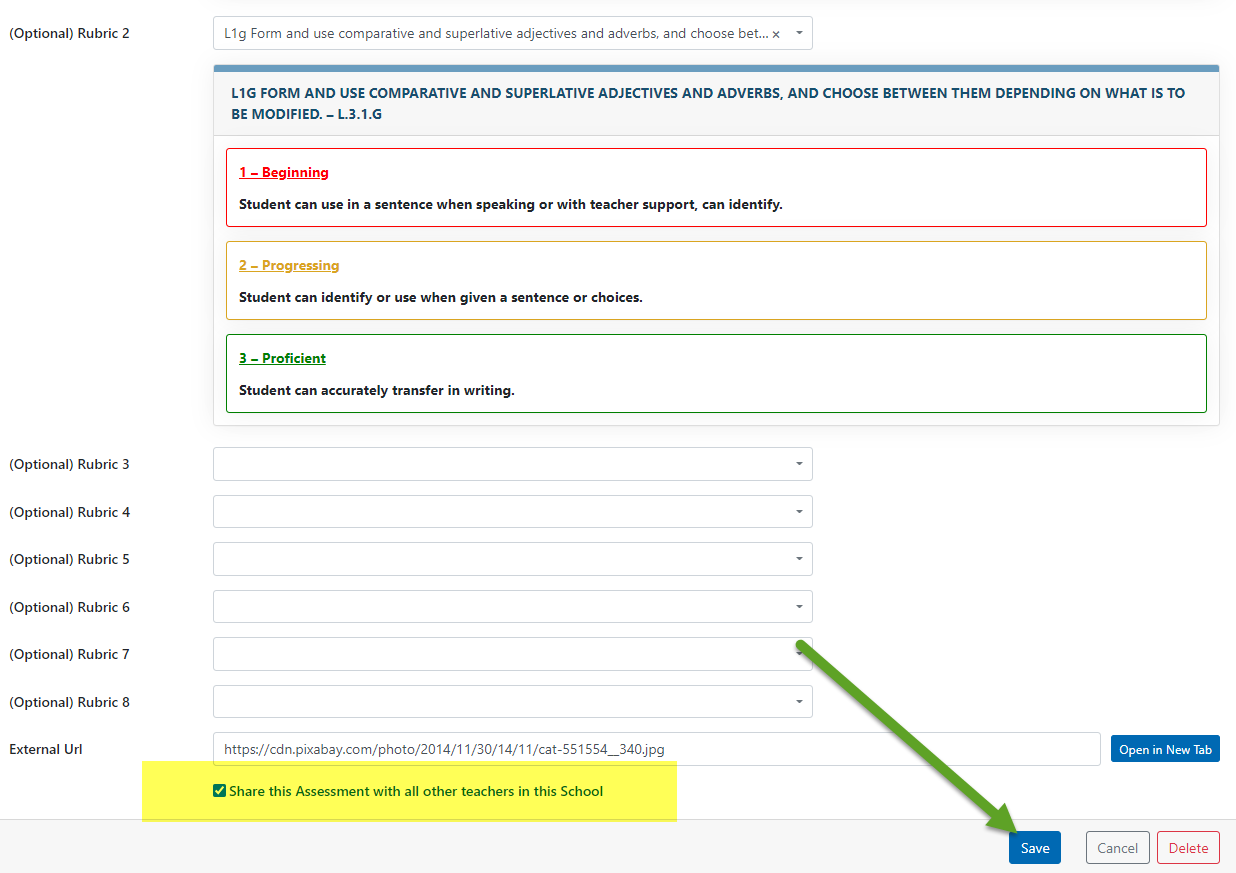
4. Once the article has been saved it can be graded just like any other teacher created assessment.